


You're at the kitchen table with a laptop open, a school timetable in one tab, and Microsoft's product pages in another. Your child needs Word for essays, PowerPoint for presentations, and something reliable enough that homework doesn't vanish the night before a deadline. For many UK families, that's the true meaning of home student Microsoft Office, not a product label, but a decision about daily learning, stress, and whether the software fits the way your child studies.
What Home Student Microsoft Office Means in 2026
A parent often starts by asking for “home student Microsoft Office” and then runs into a maze of choices. One box says Office Home 2024, another says Microsoft 365, and somewhere else there is an education offer that seems to belong to schools rather than families. The confusion is normal, because Microsoft's consumer route is really about how the software is licensed and used, not just what is inside the box.
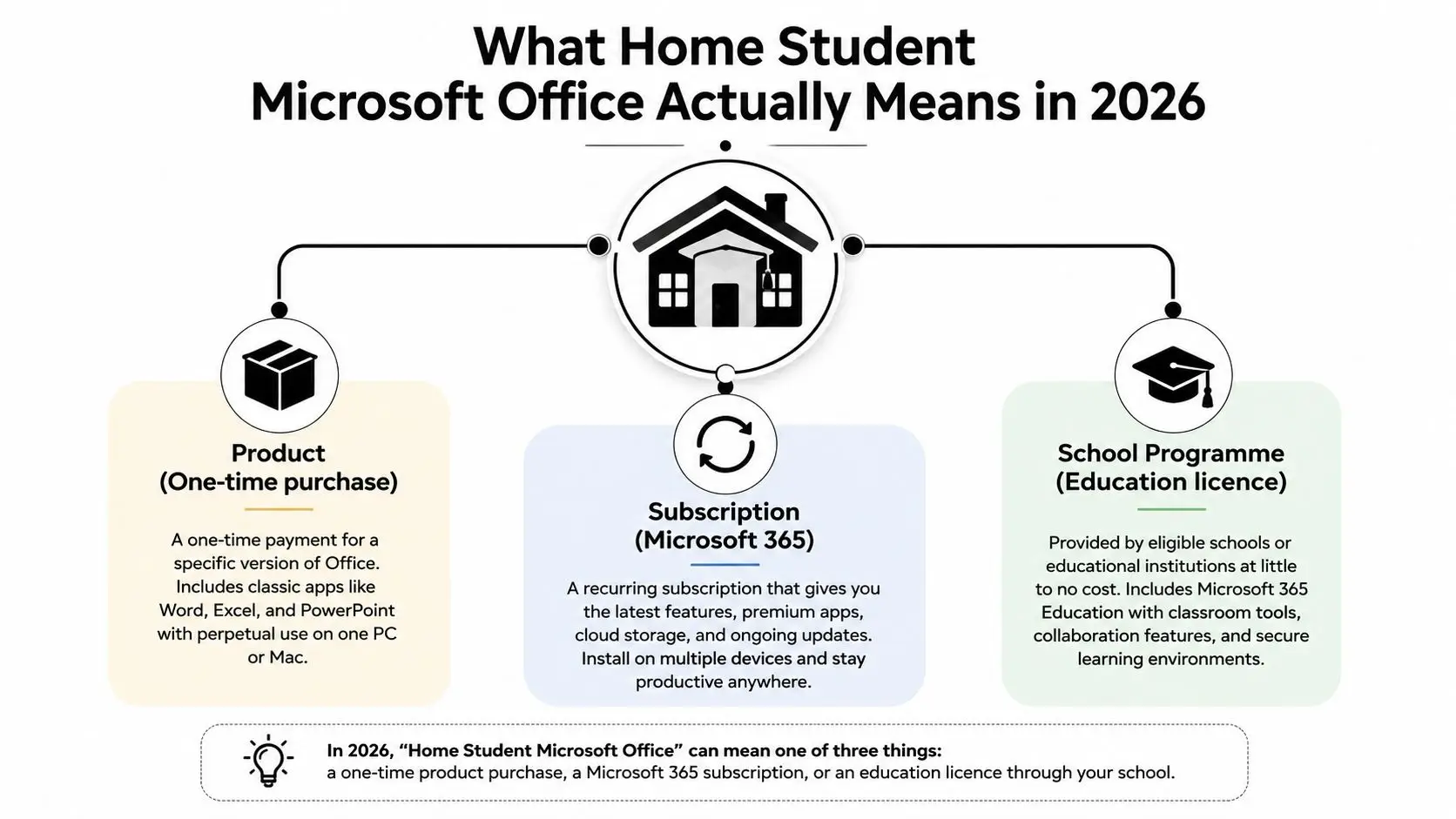
Three paths, one family decision
Office Home 2024 is the simple one-time purchase route. Microsoft says its consumer Office suites are installed on a single PC or Mac and are intended for use at home or school, which suits families who want classic desktop apps on one machine without a subscription to manage. The trade-off is that it stays tied to that device and that version, so it works best when the child studies mainly in one place. Microsoft's Office Home 2024 page
Microsoft 365 is the subscription route. It adds multi-device use and continuously delivered feature and security updates, so it fits households where more than one learner needs access, or where a child moves between a laptop, tablet, and desktop. In a busy home, that can mean fewer “whose turn is it?” arguments and less worry about whether the software is out of date.
The third path is the Education offer, which is routed through eligible schools, colleges, and universities. For families, questions often begin here, because homeschool parents do not always have a school-issued email or a clear route into the student offer. The practical point is simple, free education access depends on eligibility through an institution, not on the household buying a family copy.
Practical rule: if your child needs one dependable desktop setup, a perpetual licence can feel simpler. If your household has multiple learners or multiple devices, a subscription usually matches real life more closely.
Office Home 2024 vs Microsoft 365 for Students
The cleanest way to think about the choice is to ask what your child does in a normal week. A GCSE student writing essays, building revision notes, and submitting one set of files from one laptop has a different need from a sixth former who moves between devices, shares files with siblings, and works on live lessons plus coursework. Microsoft's current comparison materials make the practical split clear, Microsoft 365 brings additional apps, premium features, and the latest feature and security updates, while a perpetual product stays at the version you bought. Microsoft consumer comparison document
A parent-friendly comparison
| Feature | Office Home 2024 | Microsoft 365 Personal | Microsoft 365 Family |
|---|---|---|---|
| Purchase style | One-time purchase | Subscription | Subscription |
| Device use | One PC or Mac | Multiple devices | Multiple devices for the household |
| Core apps | Word, Excel, PowerPoint | Apps plus extra services | Apps plus extra services |
| Updates | Fixed to the version purchased | Latest feature and security updates | Latest feature and security updates |
| Best fit | One child, one computer, simple setup | One learner with flexible device use | Families with more than one learner |
Office Home 2024 is the straightforward choice when you want a single-device desktop licence and don't want renewal reminders hanging over you. Microsoft 365 Personal suits a student who uses more than one device and wants the software to stay current over several school years. Microsoft 365 Family makes sense when siblings both need access, or when a parent wants to keep one account structure for the whole home.
The budget question most families miss
Microsoft's UK student discount programme also includes a 10% discount on select physical products, including select Surface devices, PCs, and PC accessories, through the education store. That's useful if you're building a study setup from scratch, because the software choice often sits beside the hardware choice, not separate from it. Microsoft Education Store
A family buying for GCSEs or A-Levels should think in terms of routine, not just price. If a child is likely to use the same laptop every day for years, a one-time purchase can reduce admin overhead. If revision, collaboration, and shared family devices are part of the picture, the subscription model usually fits better.
Installation and Activation Without the Headaches
Most parents don't fear the cost first, they fear the setup. A purchase feels manageable until you're staring at a product key, a Microsoft account prompt, and a child asking when they can start their lesson. The good news is that installation is usually a series of small steps, not a technical ordeal.
The first move is simple, sign in to an existing Microsoft account or create one if you don't have one. Then redeem the product key or activate the subscription, download the apps from Microsoft, and sign in on the first device. If you're using a shared family laptop, that same account can usually be the anchor point for setup, so the child isn't bouncing between different logins on day one.
This Queen's Online School installation guide is useful if you want a school-style walkthrough for getting Office onto a learner's device.
Common stumbling blocks parents hit
A school-issued email can cause confusion if it doesn't match the Microsoft account you used at purchase. That's especially common in homes where a child studies through an online provider but the family bought Office separately. If an activation error appears, sign out and back in before assuming the licence has failed, because account mismatch is often the actual issue.
If you move Office to a new laptop, deactivate it on the old one first. That simple step saves a lot of panic when a child's replacement device is due to start lessons the same afternoon.
Chromebooks need a different conversation from Windows laptops and Macs. If the child mainly needs browser-based work, the web apps may be enough. If they rely on full desktop features, the family needs to make sure the device and the licence line up before the first assignment lands.
The emotional win here is bigger than the technical one. When the software opens cleanly, the child gets to start the lesson feeling ready, not delayed by a parent trying to untangle a sign-in loop.
Word, Excel, PowerPoint, OneNote, OneDrive and Teams in Daily Learning
Office looks abstract in a product page. At home, it becomes a school day. A child doesn't need “productivity software” in the abstract, they need a place to write, a place to store work, and a way to join class without losing their place. That's where the apps start doing real work.
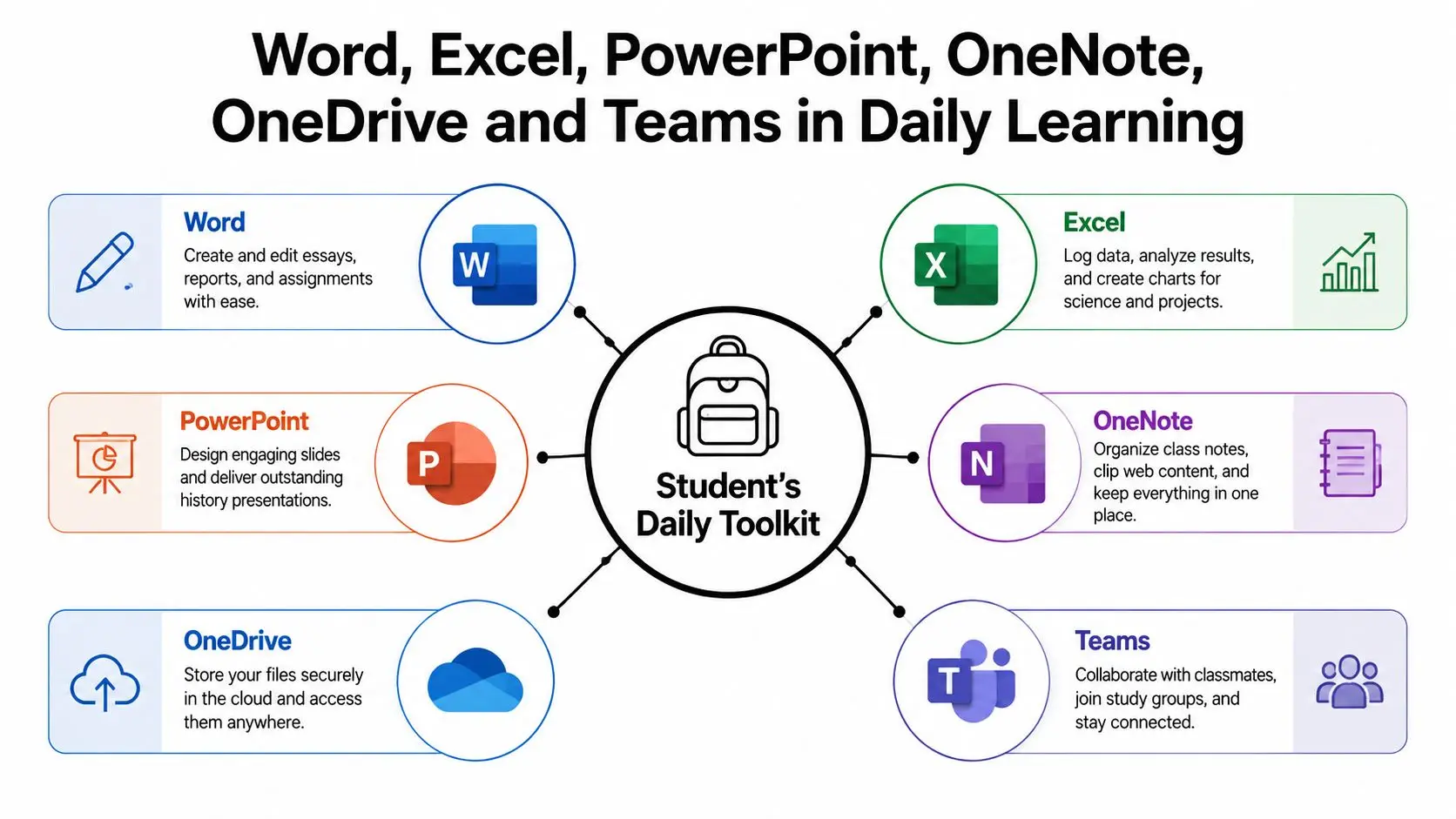
Turning apps into study habits
Word is the obvious home for essays, but it's also where a learner can draft, revise, and use focus tools when a long writing task feels overwhelming. A GCSE English student can keep one clean draft open, while a sixth former can shape coursework without jumping between different notes files.
Excel helps with more than number tables. A science student can log results from a practical task, compare patterns, or build a simple revision tracker that shows which topics need another pass. For some children, the grid makes thinking visible in a way that lined paper doesn't.
PowerPoint works well for oral practice. A student preparing for a spoken presentation can build slides as prompt cards, then rehearse aloud before a live class. In virtual classrooms, including interactive lessons like those used by providers such as Queen's Online School, that can make a presentation feel less frightening and more structured.
OneNote behaves like a digital exercise book. Notes can sit beside screenshots, typed summaries, and quick voice notes, all in one place. OneDrive is the safety net, because if a file saves there, the child has less chance of losing homework to a dead laptop or a forgotten USB stick. Teams pulls live lessons, group chats, and teacher messages into one place, which matters when a child needs a question answered without waiting until the next class.
For parents trying to simplify the digital clutter, a practical companion guide on Copilot for everyday tasks can also help you think about how AI features may support drafting and organisation without replacing the child's own work.
Small tools that reduce friction
A child who types slowly may benefit from a typing routine before lesson time. A child who writes better after speaking ideas aloud may prefer audio-first note taking in OneNote. And a child who loses track of files may do better when OneDrive is treated as the default save location from the start.
This typing skills guide is a helpful companion if your child's confidence drops because typing feels slower than thinking.
The right app setup doesn't just save time. It can stop a child from feeling behind before the homework even begins.
Accessibility and SEN Strategies That Actually Help
Accessibility settings matter most when the child is tired, overloaded, or trying to work through a difficult lesson without spiralling. Families supporting dyslexia, ADHD, autism, SEMH needs, or visual processing differences often need software that lowers friction, not adds to it. Microsoft's apps give you several ways to do that, and the key is to switch them on before a crisis, not during one.
Settings that change the experience
In Word, Immersive Reader and Read Aloud can reduce the strain of dense text. Line focus and page-colour options can make paragraphs feel less crowded, which is useful for learners who lose their place easily. Dictation also helps when typing itself becomes the barrier rather than the task.
Excel can feel intimidating for some children, so the trick is to reduce visual noise. A simplified ribbon and high-contrast themes can make the spreadsheet less overwhelming, especially for learners who need fewer buttons on screen at once. PowerPoint's Presenter Coach can be useful before a spoken assessment, because it gives a child a safer place to rehearse.
OneNote has a quieter strength. A learner who thinks out loud can capture an audio note, then come back later and turn it into written work. That can be especially helpful for students who freeze when asked to write everything perfectly the first time.
Building a calmer workflow at home
For SEMH needs, the environment matters as much as the feature set. A distraction-light Word workspace, fewer open tabs, and a predictable save routine can make a laptop feel safer. If live classes and teacher messages sit inside Teams, families can use real-time calendar integration to keep lesson times and reminders visible in one place without relying on memory alone.
OneDrive helps here too, because saving work automatically reduces the Sunday-evening panic of lost documents. If a child worries that everything has disappeared, the problem is often the filing system, not the effort they put in.
For many SEN learners, the best setup is the one that removes one decision from every lesson.
Free and Lower-Cost Alternatives Worth Knowing
A family can reach a point where a subscription feels like one expense too many, and that concern is reasonable. The useful question is not whether there is a cheaper option, but whether the option still fits the child's daily schoolwork, especially during GCSE or A-Level preparation.
Free options worth considering
Office for the web is available through OneDrive and Outlook with a Microsoft account, and it is usually the first free place to start for lighter school tasks. It handles basic documents, simple spreadsheets, and straightforward presentations well enough, but it does not replace the desktop apps if a child needs heavier formatting, offline editing, or more demanding coursework.
Homeschool parents also need to keep eligibility clear. Microsoft's free education route is aimed at eligible schools and institutions, not individual homeschool households, so families generally end up choosing between a paid desktop licence, the browser-based apps, or a different suite altogether. That is often where confusion starts, because the label on the product does not always match the way a real family studies at home.
Google Workspace for Education is common in online schools where teachers want shared files and easy collaboration. LibreOffice remains a solid offline choice for families who want to avoid subscriptions, and Apple iWork can suit homes that already rely on Mac and iPad devices. Each option can support study, but the better fit is the one that matches the child's habits, the school's file-sharing routine, and how often work moves between home and live lessons.
What to weigh before you buy
A practical comparison from Networking2000's school IT guide can help parents think about device management and school technology without getting buried in jargon.
The key question is not which option costs least. It is whether your child needs desktop apps that work offline, access on more than one device, or a browser-only routine that stays simple. For a pupil who is moving through long assignments, live classes, and revision folders over several years, the wrong setup often creates friction in the middle of learning, and that is harder to fix later than a monthly bill. For families comparing Office with the way an online school runs lessons, Queen's Online School's virtual classroom technology guide shows how Microsoft tools can sit alongside live teaching without forcing every task into the same format.
Putting It Together for Online School Families
A good setup doesn't need to be complicated. It needs to be repeatable, so the child knows where to start each morning and where to save everything at the end of the lesson. That's especially true for families using live online classes, where the day can move quickly and a missed file path can become a missed deadline.
Queen's Online School's virtual classroom technology guide is a useful reference if you want to see how Microsoft tools can sit alongside live online learning.
First-week routine that keeps the peace
| Day | Quick action | Why it helps |
|---|---|---|
| Monday | Open OneNote before class and check lesson notes | Starts the week with one clear workspace |
| Wednesday | Draft in Word and ask for feedback in class | Keeps writing tied to the lesson flow |
| Friday | Save any data work to OneDrive | Reduces the risk of losing files before the weekend |
| Weekend | Tidy folders and prep PowerPoint slides | Makes Monday feel less rushed |
A calm first-day checklist helps too. Sign in, test Word, Excel, and PowerPoint, save one practice file to OneDrive, and make sure the child knows where to find Teams messages from the school. If there's an accessibility setting to preserve, copy it across early so the child doesn't have to rebuild the same comfort settings on every device.
Quick answers parents usually ask
Is Office Home 2024 enough for A-Levels? It can be, if the child works on one PC or Mac and mainly needs the core desktop apps. If they use multiple devices or want continuous updates, Microsoft 365 fits better.
What happens when a 12-month higher-education offer ends? The software doesn't vanish, but the family should expect a decision point about whether to renew, switch to browser apps, or move to a different licence model.
Can siblings share one setup? Yes, but the right answer depends on whether they need to work at the same time on different devices.
How do I keep SEN settings consistent? Save the preferred settings in each app early, then check them after any device change or software update.
For parents who want a school that already understands the rhythm of live lessons, recording access, and learner support, Queens Online School offers a British curriculum online from Primary through Sixth Form with real-time teaching and targeted support for learners who need a steadier digital routine. If you're comparing software for a child who studies online, visit Queens Online School and see how its setup can fit around a practical home learning workflow.