

If you've ever sat down after school, opened your laptop, and realised you can't get into the Pupil Tracker, you're not alone. Most parents aren't worrying about the technology itself, they're trying to see how their child is doing, whether a teacher has left a note, or whether there's something small at school that needs a quick response. That's why a pupil tracker login should feel like a bridge to your child's learning, not another source of stress.
At Queens Online School, the Pupil Tracker sits inside the formal school record system, so what you see is tied to the same kind of live data that schools use to keep enrolment and progress accurate. In UK pupil tracker systems, pupils are often prepopulated from the school census and assigned a Unique Pupil Number (UPN), which means the login opens an official record, not just a simple class list Lancashire County Council guidance. That matters because the information is meant to support real decisions about your child's learning, attendance-style oversight, and school communication.
Your Window into Your Child's Learning Journey
A parent usually reaches for the tracker at a very ordinary moment. Maybe your child said they felt proud of a piece of work, or maybe they came home quieter than usual and you want to understand why. The login is the doorway to that conversation, and when it works well, it helps you stay close to your child's day without needing to chase information.
In the UK, pupil tracker systems are embedded in a formal data ecosystem, so the account is linked to official records rather than an informal notes page. Pupils are often prepopulated from the school census and assigned a UPN, which means the record behind the login is live and school-based, not something a teacher updates casually in isolation Lancashire County Council guidance. That's one reason login details matter so much, they control access to information that should stay accurate, secure, and properly matched to the right child.
When a parent understands that structure, the portal feels less mysterious. You're not just signing into a screen, you're entering the same record system that helps staff keep learning support organised. That gives the tracker real value for your child, because a correct login helps you and the school stay aligned on progress, concerns, and next steps.
Practical rule: if the login looks wrong, pause before trying random fixes. The most helpful first question is often, “Is this definitely the right account for me and my child?”
A good tracker login supports the partnership between home and school. It helps you notice patterns early, celebrate wins promptly, and keep your child's needs at the centre of the day.
Your First Time Accessing the Pupil Tracker
The first login should feel like an introduction, not a test. Usually, you'll get a welcome email with your starting details and a link that takes you into the secure setup page. If it hasn't appeared, check your spam or junk folder before assuming anything has gone wrong.
Click the activation link, then follow the prompts to create your own password. Keep it memorable for you, but hard for anyone else to guess. The aim is to set up a parent account that's clearly tied to your details, so the school can match you to the right child record from the beginning.
Some systems add an extra checkpoint at first sign-in. Lancashire's Pupil Tracker Hub, for example, uses a two-stage credential process where a first successful sign-in shows a five-figure security code that users must record because it won't be shown again, acting as an extra access layer for future sessions Lancashire Hub user guide. That's a helpful model to keep in mind if your own setup asks for an extra code or a one-off verification step.
Use the official Queens Online School login page when you start, not a search result or an old bookmark. The correct entry point is available through Queens Online School login guidance, and that reduces the risk of landing on the wrong portal or missing a key step in the activation process.
Keep the first password in a safe place until you've signed in successfully and checked that the account shows the right child details.
If the page asks for a code, a confirmation, or a follow-up action, take your time. A careful first login saves worry later and helps you get straight to what matters, your child's learning.
Daily Login and Simple Password Resets
Once your account is set up, the best routine is simple. Bookmark the direct portal address in your browser so you don't end up on an old page, a search result, or a link that doesn't belong to your school account. Small habits like that save a lot of frustration on busy mornings.
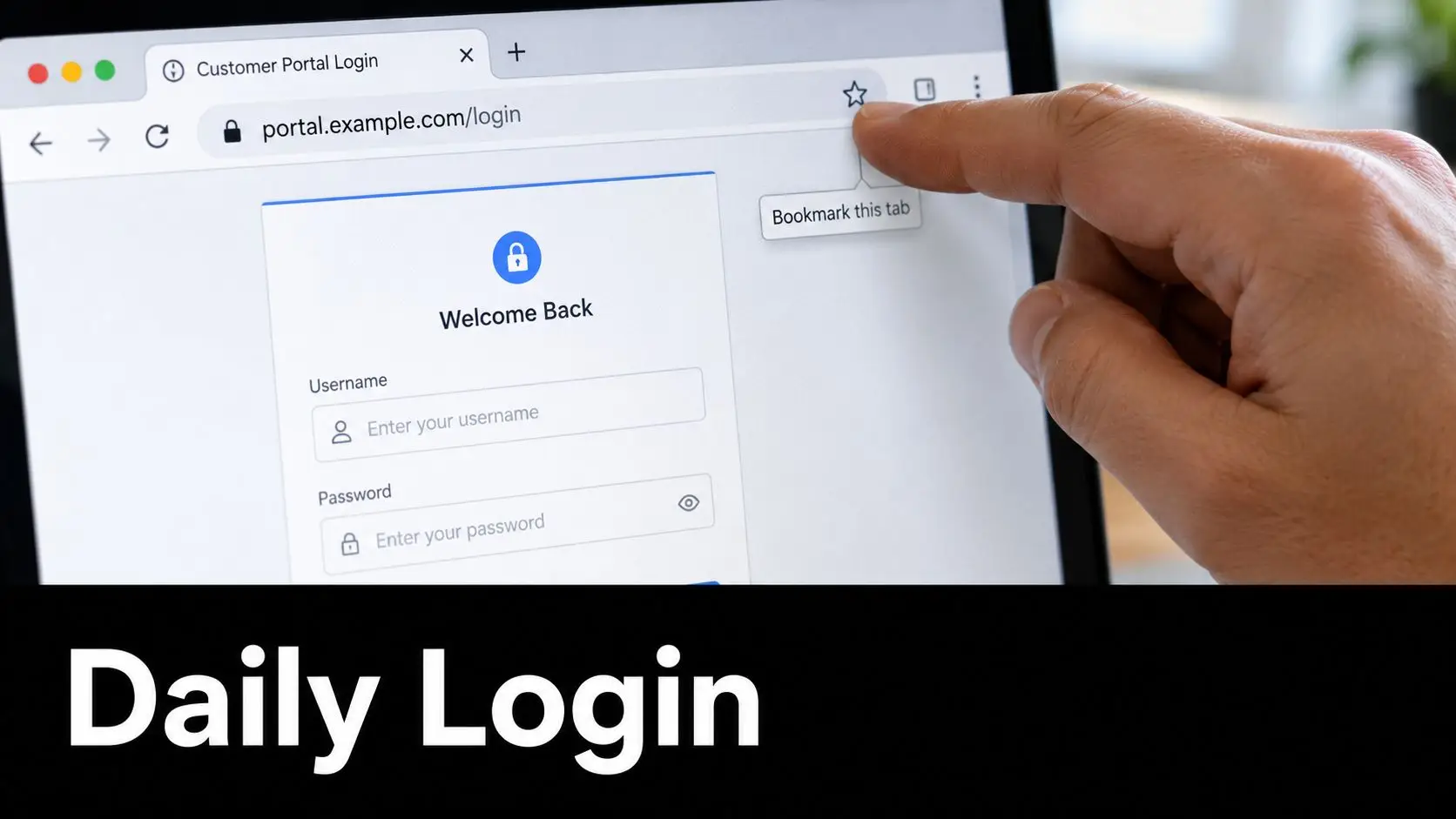
If you forget your password, use the reset link on the login page rather than guessing. Queens Online School's password change guidance is available through the school password change page, and the process is meant to be secure and straightforward. It usually sends a reset link to the email address registered on your account, which helps make sure only the right adult can authorise the change.
For parents who are managing several digital accounts at once, a clear routine helps. A resource like managing Windows local accounts can be useful context if you like understanding how password changes work across different systems, especially when your home devices are used by more than one person.
The key is not to treat every login problem as a password problem. A password reset is helpful when the password is the issue, but it won't fix a wrong portal, a mismatched account, or a duplicated record. If you keep your login details organised and use the correct reset path, you'll usually get back in without much fuss.
After a successful sign-in, a short check is enough. Make sure you can see the right child profile, the correct school space, and the parts of the tracker you use.
Solving the Most Common Login Problems
The most frustrating login problems are often the ones that look simple on the surface. A parent assumes the password must be wrong, clicks reset, and still can't get in. In school systems, though, the underlying issue is often role confusion or duplicate account data, not a bad password.
A common example is using the right email address for the wrong role. A parent may have one email for their guardian account, while the school record also holds the same address somewhere else, or an old profile may still be attached to a different portal. Arbor's help guidance on login issues highlights problems such as duplicate guardian profiles, shared email addresses across records, and users trying the wrong school-specific portal Arbor login issues guidance. That pattern shows why password resets alone don't always solve the problem.
Check the account role first
If you're stuck, ask whether you're trying to sign in as a parent, a pupil, or using an older account that no longer matches the current record. That question matters in households with more than one child or where a family has changed email addresses over time. The login may be working exactly as designed, just not for the identity you intended.
Look for data mismatches, not just typos
Shared email addresses can confuse school portals, especially when staff, guardian, and pupil records overlap in the same family. Duplicate profiles can do the same thing, because the system may not know which record should open first. If the page keeps refusing access after a reset, that's a sign to slow down and check the underlying record, not just the password field.
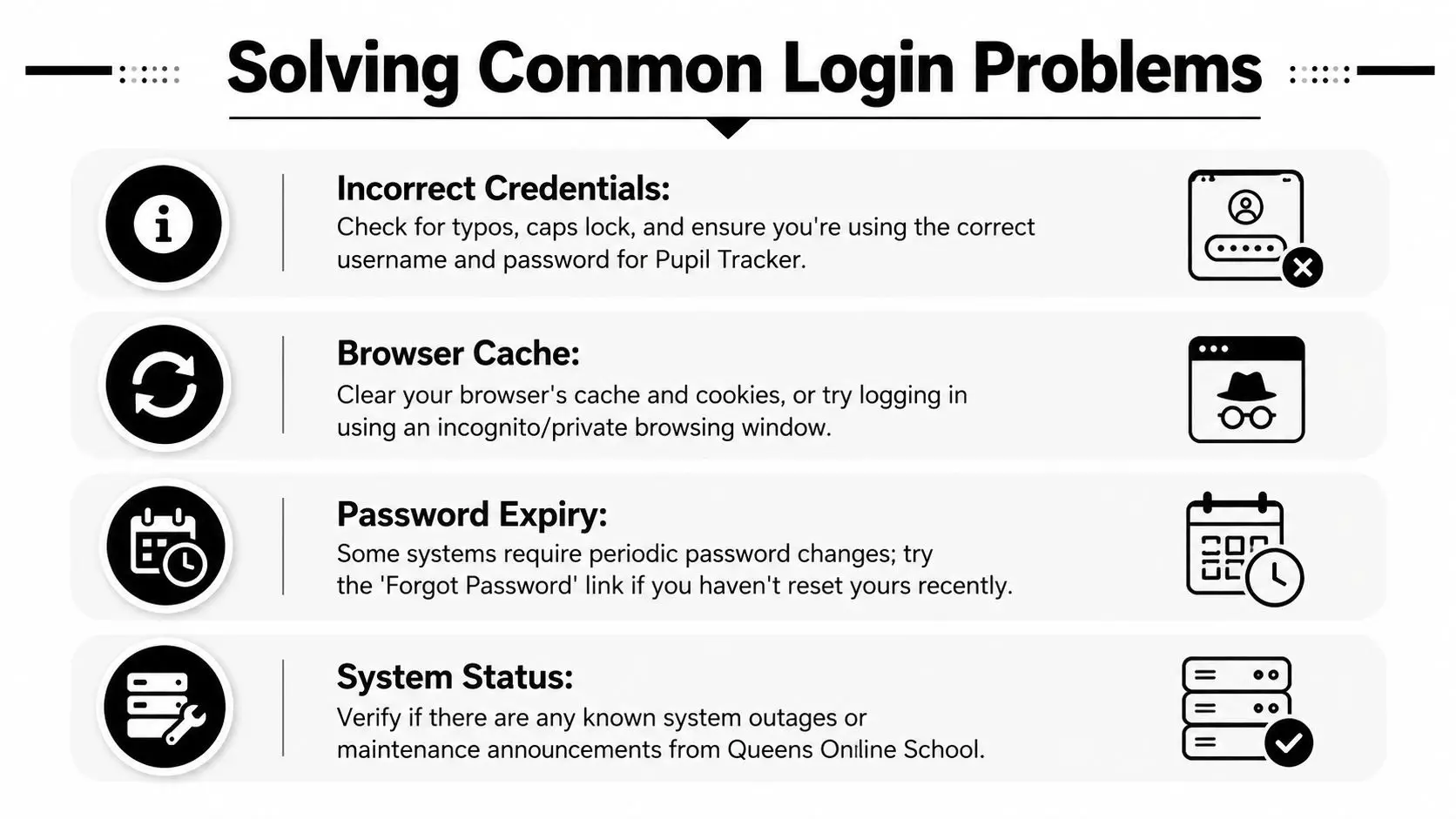
A few practical checks usually help:
- Incorrect Credentials: confirm caps lock, spelling, and the exact username the school has on file.
- Browser Cache: clear saved data or try a private browsing window if the page seems to be holding onto an old session.
- Password Expiry: if you haven't changed your password in a while, use the reset link rather than repeated attempts.
- System Status: look for school notices about maintenance or service issues before changing account details.
If you're switching between school portals, make sure you're on the correct one for Queens Online School. A wrong URL can waste time and make a simple access issue feel much bigger than it is. The goal is to get you back to the right child record quickly, so you can support learning without turning the evening into a technical puzzle.
Keeping Your Child's Account and Data Secure
Security isn't just an IT concern, it's part of safeguarding your child's education. The Pupil Tracker holds information that helps teachers, parents, and school staff work together, so the account needs the same care you'd give to any private family record. A strong, unique password is the first layer of protection.
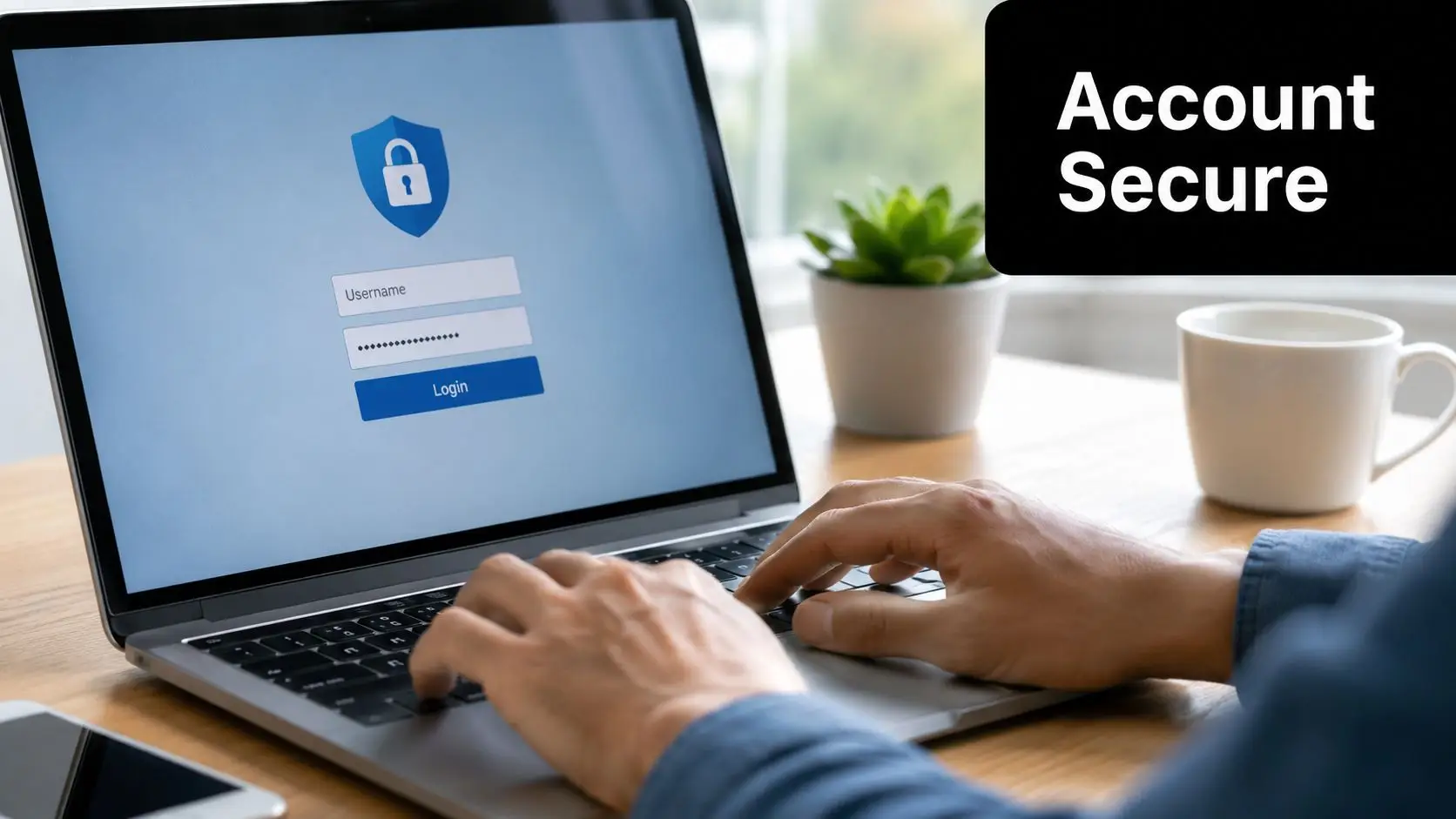
It also helps to be thoughtful about where you log in. A home network is usually a better choice than public Wi-Fi in a café or waiting room, especially if you're handling sensitive school details. If you use a shared device, log out at the end of the session so the next person can't drift into your account by accident.
UK school systems often record login activity for safeguarding, and some platforms show the exact date of last access for parent and pupil accounts while also offering dashboards that track login trends over the past 30 days TES Class Charts guidance. That kind of monitoring is helpful because it lets staff spot inactivity and respond when engagement drops. For parents, it's a reminder that logins are part of a wider culture of care around a child's digital life.
A secure login routine supports your child in a very practical way. When access is orderly and private, teachers can rely on the records they see, and families can trust that the right people are seeing the right information. That gives everyone more confidence to focus on learning, wellbeing, and support.
Good security is quiet support. You may not notice it every day, but it helps keep your child's information in the right hands.
Queens Online School also offers a structured online login environment, which helps keep parent access organised alongside the wider school system. The less confusion there is around access, the easier it is to keep attention on your child's progress.
When You Need More Help from Us
Sometimes the issue isn't something you can fix alone, and that's okay. If you've checked the account details, tried the reset path, and confirmed you're on the right portal, the next step is to ask for help. That's often the quickest way to solve a duplicate record or an email mismatch.
Use the school support contact route on Queens Online School contact details and include your child's full name, the email address you believe is registered, and a short note about what happens when you try to log in. That gives the support team enough context to look for account conflicts or portal mismatches without making you repeat the same steps several times.
If you're feeling flustered, say so. A support team can work faster when they know whether the problem is a forgotten password, a wrong profile, or an account that seems to open but shows the wrong child. The important thing is that you don't have to guess your way through it alone.
Your child benefits when access is resolved quickly, because you can get back to the important part, understanding how school is going and responding early if something needs attention.
A CTA for Queens Online School.